Google Search Console for Ecommerce: What to Check
Use Google Search Console to see which products and collections earn search traffic, why pages are not indexed, and where a D2C store should improve first.
On this page
Google Search Console is the only place Google tells you directly how your store appears in its search results: which searches show your pages, how often people click, and which pages Google has chosen not to index. For a D2C store, it answers three practical questions. Which products and collections already earn search traffic? Which important pages are missing from Google? And where would a better page earn more clicks?
This guide covers the reports that matter most for ecommerce and what to do with each one.
Set It Up Once
Add your store as a Domain property so Search Console covers every version of your site, including www and subdomains. Verify ownership through your domain provider, then submit your sitemap. On Shopify, the sitemap lives at /sitemap.xml.
Search Console only collects data from the day you verify, so set it up before you need it.
Performance: Which Searches Bring Shoppers
Open the Performance report for search results. It shows four metrics for any date range:
- Impressions: how often your pages appeared in results.
- Clicks: how often someone clicked through.
- CTR (click-through rate): clicks divided by impressions.
- Average position: the typical ranking position of your pages.
Find your product and collection traffic
Switch to the Pages tab and filter by URL. On Shopify, filter for /products/ to see product pages and /collections/ to see collections. This shows which parts of your catalog already earn search attention.
Find pages that appear but do not get clicked
Sort by impressions and look for pages with many impressions and a low CTR. These pages are already being shown, so a clearer title and description can earn more clicks without any change in ranking. Rewrite the title to say what the product is and who it is for, and use the description to answer the main buying question.
Find queries you almost rank for
Look for queries with an average position roughly between 8 and 20. These are searches where your page is close to the first page of results. Improving the answer on that page, or linking to it from a related guide, is often the fastest route to more visits.
Separate brand and non-brand searches
Searches that include your brand name come from people who already know you. Searches without it show whether you reach new customers. Use a query filter that excludes your brand name to see the non-brand picture clearly.
Page Indexing: Which Pages Google Left Out
The Page indexing report lists pages that are indexed and pages that are not, with a reason for each. Not every excluded page is a problem. What matters is whether important products, collections, or guides are among them. The most common reasons on an ecommerce store:
- Alternate page with proper canonical tag. Usually fine. Shopify product URLs inside collection paths point to the main
/products/URL, so Google indexes that one instead. - Duplicate without user-selected canonical. Google found similar pages and picked one itself. Check filtered or sorted collection URLs and variant URLs here.
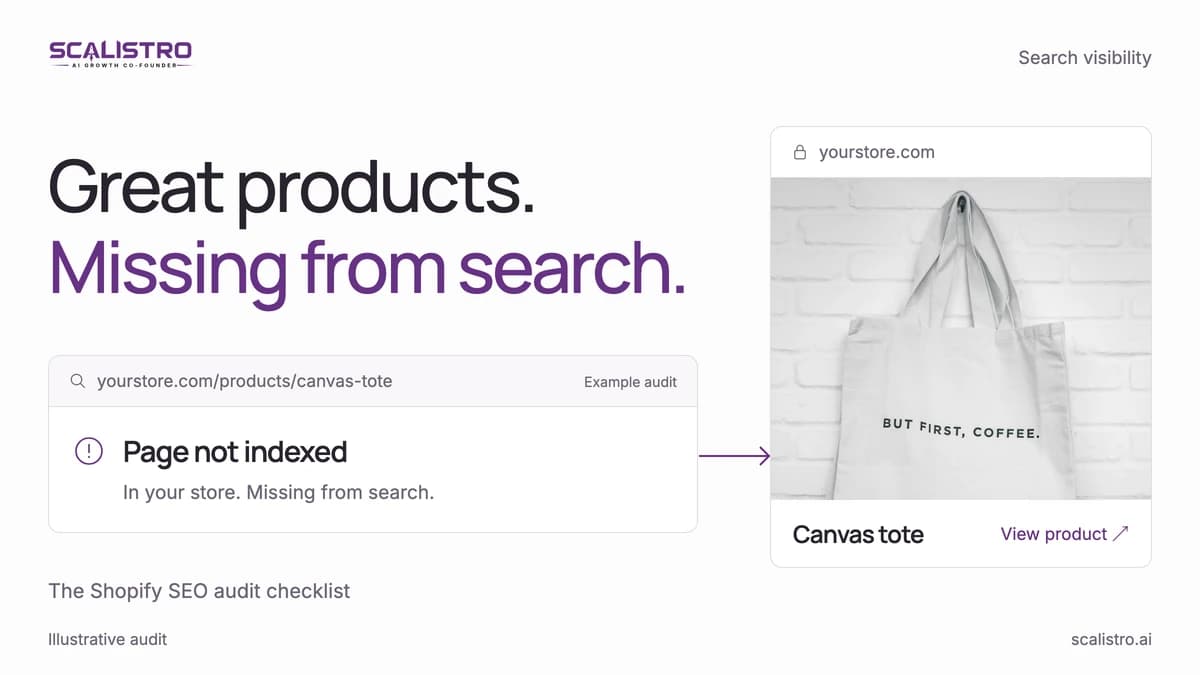
- Crawled, currently not indexed. Google read the page and chose not to index it yet. This often points to thin or repetitive content, such as products with only a manufacturer description.
- Discovered, currently not indexed. Google knows the URL but has not crawled it. Strengthen internal links to the page from collections and guides.
- Not found (404). Old products or changed handles. Redirect the ones that still receive links or clicks to the closest useful page.
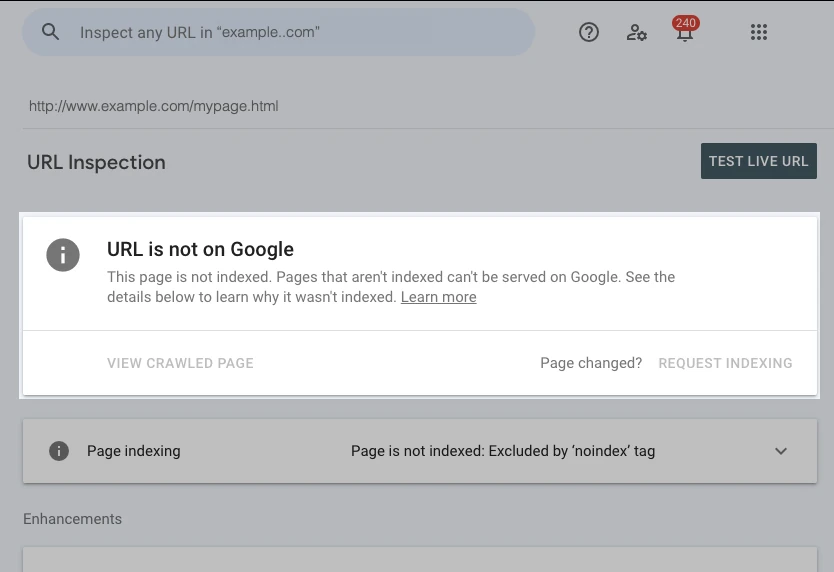
- Excluded by noindex tag. Confirm this is intentional. Apps and theme settings sometimes add
noindexto pages you want in search.
Use the URL Inspection tool on any important page to see its exact status, the canonical Google chose, and when it was last crawled.
Swipe to explore. Tap to open full size.
Source: Google Search Console Help.
Shopping and Product Reports
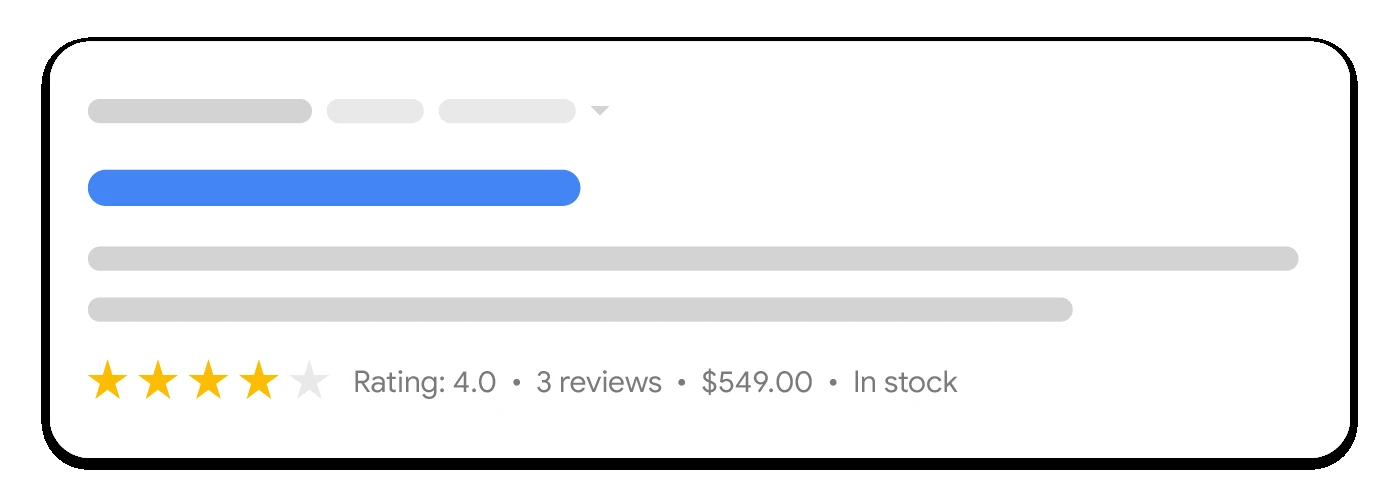
If your product pages include Product structured data, Search Console shows reports for product snippets and merchant listings. They list items with missing or invalid fields, such as price or availability. Fix errors on your best-selling products first, and check that the structured data matches what the page shows.
Swipe to explore. Tap to open full size.
Source: Google Search Central.
Core Web Vitals: Is the Store Fast Enough
The Core Web Vitals report groups your URLs by template and shows whether real visitors experience them as good, needing improvement, or poor, on mobile and desktop. On a store, the problem usually affects a whole template, such as every product page. Common causes are large images, several app scripts loading on every page, and heavy video.
A Monthly Review in 20 Minutes
- Page indexing: any new errors, or important pages newly excluded?
- Performance, pages tab: which products and collections gained or lost clicks compared with the previous period?
- High impressions, low CTR: pick two pages and improve their titles and descriptions.
- Positions 8 to 20: pick one page and improve its answer or internal links.
- Record changes: note what you changed and when, so you can judge the effect later.
Swipe to explore. Tap to open full size.
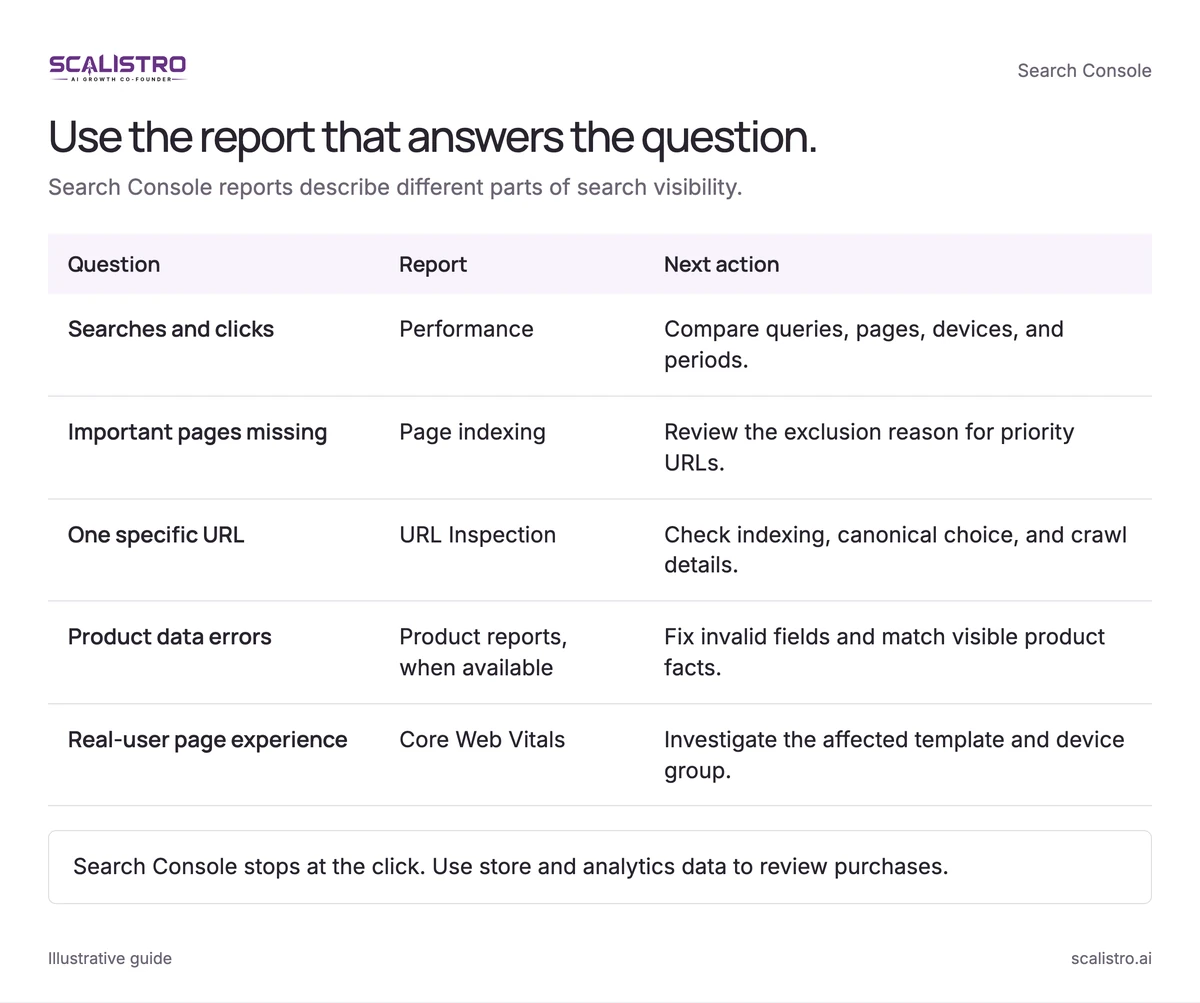
Image details: Use the report that answers the question.
| Question | Report | Next action |
|---|---|---|
| Searches and clicks | Performance | Compare queries, pages, devices, and periods. |
| Important pages missing | Page indexing | Review the exclusion reason for priority URLs. |
| One specific URL | URL Inspection | Check indexing, canonical choice, and crawl details. |
| Product data errors | Product reports, when available | Fix invalid fields and match visible product facts. |
| Real-user page experience | Core Web Vitals | Investigate the affected template and device group. |
Search Console stops at the click. Use store and analytics data to review purchases.
What Search Console Does Not Tell You
Search Console stops at the click. It does not show what visitors bought, so connect it with your store data and analytics to judge revenue. It also does not show how often AI assistants outside Google mention your brand. Track that separately with a fixed set of buying questions, as described in the AEO and GEO guide for D2C brands.
For a full review of your product pages, collections, and guides, the Shopify SEO audit checklist covers what to check beyond Search Console. Scalistro's search visibility audit runs those checks and recommends which pages to improve first.